
Overview
Client Messages provides secure communication between agency users and Client Access users. Before users can access Client Messages, configure the appropriate permissions and Client Access settings.
Please Note:
Client Messages is available with the Client Access PLUS add-on. To add Client Access PLUS to your ACE system, contact sales@interprose.com.
Configure User Permissions
Agency users need the permissions appropriate to their work and access to the applicable client data roles. Use the Manage - Client Messages permission role or equivalent permissions.
Permission | Description |
|---|---|
| View Client Messages and download message attachments, including existing Account Documents attached by an agency user. |
| Create Client Messages and upload new message attachments. |
| Delete client messages. |
| View client messages from account screens. |
| Archive Client Messages. |
Please Note:
Do not assign these permissions or the Manage - Client Messages permission role to Client Access users. Access to Client Messages for Client Access users is controlled through the Client Access UI configuration.
Agency users must also have access to the applicable client data roles.
Enable Client Messages for Client Access Users
Client Messages can be enabled separately for each Client Access User Interface template. This allows you to control which Client Access users can access Client Messages and which message-management actions are available.

Image Displays Client Messages Settings in the Client Access User Interface Configuration
Go to Setup → User Interface → Client Access.
Select the User Interface template you want to configure.
Locate the Client Messages settings.
Configure the following options as needed.
Click Apply to save your changes.
Setting | Description |
|---|---|
Show Client Messages | Allows Client Access users assigned to the User Interface template to access Client Messages. |
Allow Client Message Archiving | Allows Client Access users to archive Client Messages. |
Allow Client Message Deleting | Allows Client Access users to delete Client Messages. |
Configure Message Notes
When a Client Message is associated with an account, ACE creates a CLIENT_MESSAGE account note.
To allow Client Access users to view Client Message notes, configure the Notes settings for the applicable Client Access User Interface template.
Go to Setup → User Interface → Client Access.
Select the User Interface template you want to configure.
Locate the Notes section.
Select Show Notes.
Under Types, select Client Message.
Click Apply to save your changes.
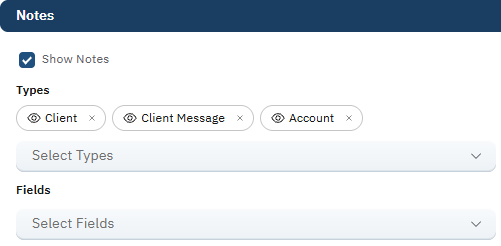
Image Displays Show Notes Enabled and Client Message Selected Under Types
Configure Workflows
Client Message triggers can initiate an Action Path when a message is received from or sent to a Client Access user.
The following triggers are available:
Event Type | Description |
|---|---|
| Initiates after successfully inserting a new Client Message received from a client. |
| Initiates after successfully inserting a new Client Message sent to a client. |
Associate the trigger with the Action Path that defines the actions ACE should perform. When configuring the trigger, select the applicable Action Path from Flow Action ID.
Create a Client Message Workflow
Create an Action Path to define what ACE should do when a Client Message trigger occurs, then associate the Action Path with the trigger.
Go to Setup → Workflow → Action Paths.
Click New to create an Action Path.
Enter a label and description, then save the Action Path.
Add and configure the Flow Actions ACE should perform.
Go to Setup → Workflow → Triggers and click New.
From Event Type, select the applicable Client Message trigger:
onAfterClientMessageInboundInsert — New Client Message received from a client.
onAfterClientMessageOutboundInsert — New Client Message sent to a client.
From Flow Action ID, select the Action Path you created.
Set Active to true, then click Save.
Example: Create a User Alert for an Inbound Message
To alert an agency user when a Client Access user sends a new message, create an Action Path containing a Create User Alert Flow Action and associate it with the onAfterClientMessageInboundInsert trigger.
Select the agency user or users who should receive the alert. For the alert subject, use:
New Client Message available re: ${clientMessage.subject}
In this example, ACE replaces ${clientMessage.subject} with the subject of the Client Message that initiated the workflow.
In the alert link field, enter ${clientMessage.link} so the recipient can open the applicable Client Message directly.
Create a test message from a Client Access user and confirm that the intended agency user receives the alert and can open the message from its link.
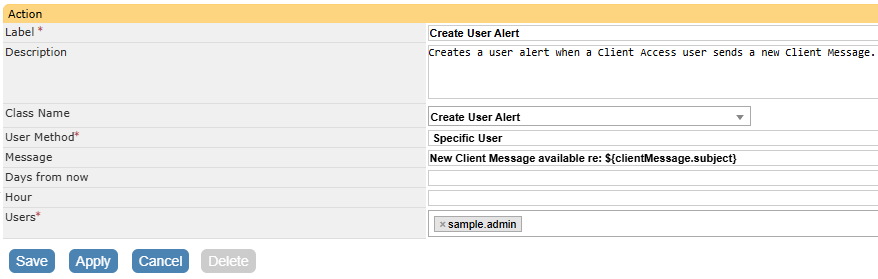
Image Displays a Create User Alert Action for an Inbound Client Message
Client Message Workflow Variables
Workflow variables allow information from the Client Message that initiated the workflow to be used in supported Flow Action fields.
Variable | Description |
|---|---|
| Provides information about the Client Message that initiated the workflow. |
| Provides information about the client associated with the message. |
| Provides the email addresses of Client Access users who have the client data role for the applicable client. |
| Provides information about the account associated with the message. If the message is not associated with an account, this may be empty. |
| Provides a link to the applicable Client Message. |
| Provides an AI-generated summary of the Client Message. |
Client Message Fields
The ${clientMessage} variable provides information about the Client Message that initiated the workflow. To use a specific piece of information from the message, add the applicable field after clientMessage.
For example:
${clientMessage.subject}
returns the subject of the Client Message.
The following fields are available:
Field | Type | Description |
|---|---|---|
| Sequence | Client Message ID. |
| Sequence | Client ID associated with the message. |
| String | Customer client code. |
| String | Message subject. |
| String | Message body. |
| DateTime | Date and time the message was sent. |
| Sequence | Debt ID when the message is associated with an account. |
| Sequence | ID of the root message in the conversation. |
| Boolean | Indicates whether the message is marked as a favorite. |
| Boolean | Indicates whether the message has been read. |
| Boolean | Indicates whether the message is marked as important. |
| Boolean | Indicates whether the message is archived. |
| Boolean | Indicates whether the message contains attachments. |
| String | Name of the message sender. |
| String | Source of the message. |
| String | Link associated with the Client Message. |
| Sequence | ID of the user who created the message. |
| DateTime | Date and time the message was created. |
| Sequence | ID of the user who last updated the message. |
| DateTime | Date and time the message was last updated. |
Please Note:
A Client Message may or may not be associated with an account. When no Debt ID is available,
${debt}may be empty.
Verify the Configuration
Sign in as a representative agency user and confirm access to the intended clients and their messages.
Sign in as a representative Client Access user and confirm that Client Messages is available and only authorized client messages are visible.
Send a test message and reply. Include an attachment and confirm that it can be downloaded.
Confirm that archive and delete actions match the configured permissions or Client Access settings.
If you configured workflows or Client Message notes, verify the expected alert, email, or account note.
For mailbox instructions, see Using Client Access PLUS Messages.
API Access
Client Messages can be accessed using the ACE API.
To access the API documentation:
Go to Help → API Documentation.
Refer to the following API sections:
ClientMessage — Provides endpoints for viewing, creating, updating, and deleting Client Messages and managing Client Message attachments.
Client Access Config — Provides endpoints for viewing and managing Client Access configurations, including the configuration used by Client Access features.