
Overview
Client Access Tasks helps agencies and Client Access users create and track account requests, such as balance verification, payment verification, or applying a discount.
Tasks are part of Client Access PLUS. Your available tasks depend on your task permissions, Task Type roles, and access to the associated client and account.
Access Client Tasks
User | Navigation |
|---|---|
Agency | Clients → Tasks |
Agency client profile | Select Tasks in the sidebar to view tasks for that client. |
Agency account | Select Client Tasks in the account sidebar. |
Client Access home | Communication → Tasks |
Client Access account | Select Tasks in the Accounts sidebar. |
Please Note: The Client Access account sidebar currently opens the general task list without filtering it to the account. Verify the Debt ID when reviewing or creating a task.
Understand the Task List
By default, each side sees non-closed tasks created by the opposite side. Agency users see client-created tasks; Client Access users see agency-created tasks. Adjust the list filters to find tasks you created or tasks with a different status.
Tasks use a shared work queue. Eligible users can see the same task; there is no individual assignee field. Task Type roles control who can create and view each type.
Create a Task
1. Open the task list and click New.
2. Select a Task Type.
3. Enter or verify the Debt ID for the account associated with the request. The account currently displayed in the account summary may populate this field.
4. Enter a Due Date, if needed.
5. Enter the request details in Description.
6. Click Save.
New tasks have a status of Open. Tasks created by an agency user have a source of Agency; tasks created by a Client Access user have a source of Client.
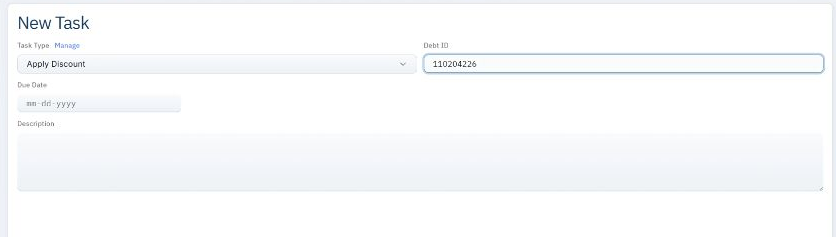
Image Displays Task Type, Debt ID, Due Date, and Description
Please Note: If your new task does not appear in the list, adjust the task source filter to include tasks created by your side.
Task Notifications
Your agency can configure emails, user alerts, or other workflow actions when tasks are created or become due. Notifications depend on the configured workflow and job schedule.
Review and Update a Task
1. Open the task list and select a task.
2. Review the Task Type, Debt ID, Task Source, due date, and description.
3. Update Status to reflect progress.
4. Make other changes available to your user, then click Save.
Status | Use |
|---|---|
Open | The request is awaiting work. New tasks default to this status. |
In Progress | Work on the request is underway. |
Closed | Work on the request is complete. |
These three statuses are fixed; additional statuses cannot be added. Updating a task, including its status, requires Debt Task Save permission.
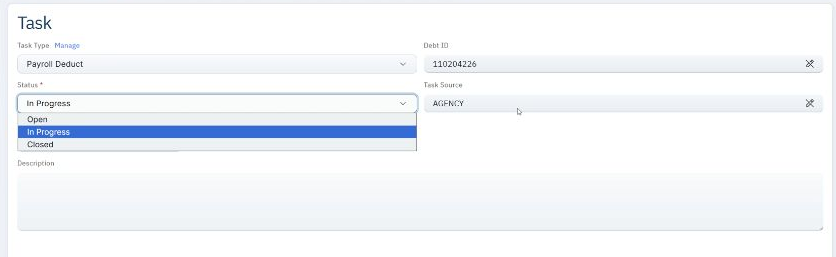
Image Displays the Task Details and Available Statuses
Task History
Creating or deleting a task generates an Account note identifying the Task Type and Task ID. Updating a task does not generate this note.
Client Access users can see these notes when the agency enables Show Notes and includes Account in the permitted note types.